---
title: Execution Modes
description: Adaptive checkpoints (Autopilot, Confirm, Validate) and run scope (Single, Batch, Wide)
---
## Adaptive Checkpoints
FIRE's breakthrough is **adaptive checkpoints** that scale with complexity. Instead of a fixed number of gates, FIRE adjusts oversight based on two inputs:
1. **Work Complexity**: Low, Medium, or High
2. **Your Autonomy Config**: Set during project initialization
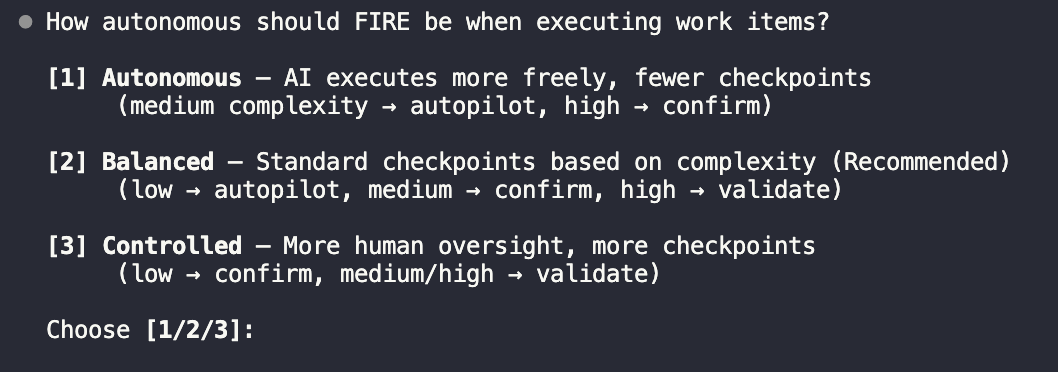 These combine to determine the execution mode:
```mermaid
flowchart LR
WC(Work Complexity):::build --> E{{"Adaptive Engine"}}:::design
AC(Autonomy Config):::build --> E
E --> AP(Autopilot):::done
E --> CO(Confirm):::plan
E --> VA(Validate):::check
classDef design fill:#fff,stroke:#A855F7,color:#7E22CE,stroke-width:1.5px,rx:8,ry:8
classDef plan fill:#fff,stroke:#6366F1,color:#4338CA,stroke-width:1.5px,rx:8,ry:8
classDef build fill:#fff,stroke:#0EA5E9,color:#0369A1,stroke-width:1.5px,rx:8,ry:8
classDef done fill:#fff,stroke:#10B981,color:#047857,stroke-width:1.5px,rx:8,ry:8
classDef check fill:#fff,stroke:#EC4899,color:#BE185D,stroke-width:2px,rx:8,ry:8
```
### Mode Comparison
```mermaid
flowchart TB
A1(Plan):::build --> A2(Execute):::build --> A3(Walkthrough):::build --> A4(Done):::done
classDef build fill:#fff,stroke:#0EA5E9,color:#0369A1,stroke-width:1.5px,rx:8,ry:8
classDef done fill:#fff,stroke:#10B981,color:#047857,stroke-width:1.5px,rx:8,ry:8
```
**0 checkpoints** - AI executes directly
```mermaid
flowchart TB
C1(Plan):::plan --> C2{{"✋ Confirm"}}:::check --> C3(Execute):::build --> C4(Done):::done
classDef plan fill:#fff,stroke:#6366F1,color:#4338CA,stroke-width:1.5px,rx:8,ry:8
classDef build fill:#fff,stroke:#0EA5E9,color:#0369A1,stroke-width:1.5px,rx:8,ry:8
classDef done fill:#fff,stroke:#10B981,color:#047857,stroke-width:1.5px,rx:8,ry:8
classDef check fill:#fff,stroke:#EC4899,color:#BE185D,stroke-width:2px,rx:8,ry:8
```
**1 checkpoint** - Human confirms plan
```mermaid
flowchart TB
V1(Design):::design --> V2{{"✋ Review"}}:::check --> V3(Plan):::plan --> V4{{"✋ Approve"}}:::check --> V5(Execute):::build --> V6(Done):::done
classDef design fill:#fff,stroke:#A855F7,color:#7E22CE,stroke-width:1.5px,rx:8,ry:8
classDef plan fill:#fff,stroke:#6366F1,color:#4338CA,stroke-width:1.5px,rx:8,ry:8
classDef build fill:#fff,stroke:#0EA5E9,color:#0369A1,stroke-width:1.5px,rx:8,ry:8
classDef done fill:#fff,stroke:#10B981,color:#047857,stroke-width:1.5px,rx:8,ry:8
classDef check fill:#fff,stroke:#EC4899,color:#BE185D,stroke-width:2px,rx:8,ry:8
```
**2 checkpoints** - Design + plan review
## Autopilot Mode (0 Checkpoints)
**AI executes directly, generates walkthrough for review.**
### When to Use
- Bug fixes with clear reproduction steps
- Minor updates (text changes, config tweaks)
- Well-defined CRUD operations
- Adding tests for existing code
- Documentation updates
### Flow
**Start → AI Plans → AI Executes → Walkthrough**
No human checkpoints. AI loads context, executes changes directly, and generates a walkthrough for post-review.
### Example
```
Work Item: Fix typo in error message
Mode: Autopilot
Builder executing...
✓ Updated src/errors.ts line 42
✓ Walkthrough generated
---
# Walkthrough: fix-error-typo
## Summary
Fixed typo "recieved" → "received" in authentication error message.
## Files Changed
- src/errors.ts (1 line)
## Verification
Error message now displays correctly on failed login.
```
### Best Practices
:::info
Use Autopilot for **reversible** changes where the cost of a mistake is low.
:::
- Keep Autopilot tasks small and focused
- Always review walkthroughs after completion
- Upgrade to Confirm if you're unsure
## Confirm Mode (1 Checkpoint)
**AI presents plan, human confirms, AI executes.**
### When to Use
- Standard feature implementation
- API endpoint creation
- Component development
- Database queries (non-schema)
- Integration with external services
### Flow
**Start → AI Plans → ✋ Human Confirms → AI Executes → Walkthrough**
One checkpoint: you review the AI's plan before execution. Reject to provide feedback and get a revised plan.
### Example
```
Work Item: Add user profile endpoint
Mode: Confirm
---
## Plan
1. Create GET /api/users/:id endpoint
2. Add UserProfile response schema
3. Implement authorization check (user can only view own profile)
4. Add unit tests for endpoint
5. Update API documentation
**Estimated changes**: 4 files, ~80 lines
[Confirm to proceed? y/n]
```
### Providing Feedback
If the plan isn't right, reject and provide feedback:
```
[Confirm? n]
Feedback: Also include the user's recent activity in the response
```
The Builder will revise and present an updated plan.
## Validate Mode (2 Checkpoints)
**AI generates design doc, human reviews design, human approves implementation.**
### When to Use
- Security-sensitive features (auth, permissions)
- Payment and billing logic
- Core architecture changes
- Database schema modifications
- External API integrations with side effects
- Features affecting multiple modules
### Flow
**Start → AI Designs → ✋ Human Reviews → AI Plans → ✋ Human Approves → AI Executes → Walkthrough**
Two checkpoints: first review the design approach, then approve the implementation plan. This separates "is this the right approach?" from "is the plan complete?"
### Example
```
Work Item: Implement password reset flow
Mode: Validate
---
## Design Document
### Overview
Secure password reset using time-limited tokens sent via email.
### Security Considerations
- Tokens expire after 1 hour
- Tokens are single-use
- Rate limited to 3 requests per hour per email
- Token hashed in database (not stored plaintext)
### Architecture
```
User Request → Rate Limiter → Token Generator → Email Service
↓
Token Verification ← User Click ← Email
↓
Password Update → Session Invalidation
```
### Database Changes
- New table: password_reset_tokens
- Columns: id, user_id, token_hash, expires_at, used_at
[Design review complete? y/n]
---
## Implementation Plan
1. Create password_reset_tokens migration
2. Add PasswordResetService with generate/verify methods
3. Create POST /auth/forgot-password endpoint
4. Create POST /auth/reset-password endpoint
5. Add email template for reset link
6. Implement rate limiting middleware
7. Add comprehensive tests
**Estimated changes**: 8 files, ~200 lines
[Approve implementation? y/n]
```
### Two-Stage Review
:::info
Validate mode separates **design review** (is this the right approach?) from **implementation approval** (is this plan complete?).
:::
This prevents:
- Starting implementation on a flawed design
- Missing edge cases caught during design review
- Scope creep during implementation
## Choosing the Right Mode
### Decision Matrix
| Factor | Autopilot | Confirm | Validate |
|--------|-----------|---------|----------|
| **Complexity** | Low | Medium | High |
| **Reversibility** | Easy | Moderate | Difficult |
| **Security Impact** | None | Low | High |
| **User Data** | No | Read | Write |
| **External Services** | No | Read | Write |
| **Schema Changes** | No | No | Yes |
### Quick Guide
- Typo fixes
- Log statement additions
- Test additions for existing code
- Config value changes
- Comment updates
- New API endpoints (GET, non-sensitive)
- UI components
- Utility functions
- Query optimizations
- Refactoring (behavior-preserving)
- Authentication/authorization
- Payment processing
- Data migrations
- Third-party integrations (with side effects)
- Schema changes
- Security-sensitive features
## Run Scope
Run scope determines how many work items execute in a single run. This is separate from execution mode—you can batch multiple Autopilot items together, or run Validate items one at a time.
### Scope Options
**One work item per run**
Most controlled. Each item gets its own run with dedicated walkthrough.
Best for: Learning the codebase, high-stakes changes, detailed review needs
**Group by execution mode**
Respects dependencies. Groups Autopilot items together, Confirm items together, etc.
Best for: Balanced workflow, mixed complexity work
**Maximum items per run**
Minimal interruption. All compatible items execute together.
Best for: Experienced users, rapid iteration, well-understood changes
### Scope Comparison
| Scope | Items per Run | Grouping Strategy | Interruptions |
|-------|---------------|-------------------|---------------|
| **Single** | 1 | Each item isolated | Per item |
| **Batch** | By mode | Autopilot, Confirm, Validate grouped | Per mode group |
| **Wide** | All compatible | Maximum batching | Minimal |
### How FIRE Learns Your Preference
FIRE tracks your scope choices and suggests your preferred pattern:
```yaml
# In state.yaml
workspace:
run_scope_preference: batch # Learned from history
run_scope_history:
- choice: batch
items_count: 3
timestamp: 2024-01-15T10:30:00Z
- choice: single
items_count: 1
timestamp: 2024-01-14T15:45:00Z
```
You can always override the suggestion for any individual run.
These combine to determine the execution mode:
```mermaid
flowchart LR
WC(Work Complexity):::build --> E{{"Adaptive Engine"}}:::design
AC(Autonomy Config):::build --> E
E --> AP(Autopilot):::done
E --> CO(Confirm):::plan
E --> VA(Validate):::check
classDef design fill:#fff,stroke:#A855F7,color:#7E22CE,stroke-width:1.5px,rx:8,ry:8
classDef plan fill:#fff,stroke:#6366F1,color:#4338CA,stroke-width:1.5px,rx:8,ry:8
classDef build fill:#fff,stroke:#0EA5E9,color:#0369A1,stroke-width:1.5px,rx:8,ry:8
classDef done fill:#fff,stroke:#10B981,color:#047857,stroke-width:1.5px,rx:8,ry:8
classDef check fill:#fff,stroke:#EC4899,color:#BE185D,stroke-width:2px,rx:8,ry:8
```
### Mode Comparison
```mermaid
flowchart TB
A1(Plan):::build --> A2(Execute):::build --> A3(Walkthrough):::build --> A4(Done):::done
classDef build fill:#fff,stroke:#0EA5E9,color:#0369A1,stroke-width:1.5px,rx:8,ry:8
classDef done fill:#fff,stroke:#10B981,color:#047857,stroke-width:1.5px,rx:8,ry:8
```
**0 checkpoints** - AI executes directly
```mermaid
flowchart TB
C1(Plan):::plan --> C2{{"✋ Confirm"}}:::check --> C3(Execute):::build --> C4(Done):::done
classDef plan fill:#fff,stroke:#6366F1,color:#4338CA,stroke-width:1.5px,rx:8,ry:8
classDef build fill:#fff,stroke:#0EA5E9,color:#0369A1,stroke-width:1.5px,rx:8,ry:8
classDef done fill:#fff,stroke:#10B981,color:#047857,stroke-width:1.5px,rx:8,ry:8
classDef check fill:#fff,stroke:#EC4899,color:#BE185D,stroke-width:2px,rx:8,ry:8
```
**1 checkpoint** - Human confirms plan
```mermaid
flowchart TB
V1(Design):::design --> V2{{"✋ Review"}}:::check --> V3(Plan):::plan --> V4{{"✋ Approve"}}:::check --> V5(Execute):::build --> V6(Done):::done
classDef design fill:#fff,stroke:#A855F7,color:#7E22CE,stroke-width:1.5px,rx:8,ry:8
classDef plan fill:#fff,stroke:#6366F1,color:#4338CA,stroke-width:1.5px,rx:8,ry:8
classDef build fill:#fff,stroke:#0EA5E9,color:#0369A1,stroke-width:1.5px,rx:8,ry:8
classDef done fill:#fff,stroke:#10B981,color:#047857,stroke-width:1.5px,rx:8,ry:8
classDef check fill:#fff,stroke:#EC4899,color:#BE185D,stroke-width:2px,rx:8,ry:8
```
**2 checkpoints** - Design + plan review
## Autopilot Mode (0 Checkpoints)
**AI executes directly, generates walkthrough for review.**
### When to Use
- Bug fixes with clear reproduction steps
- Minor updates (text changes, config tweaks)
- Well-defined CRUD operations
- Adding tests for existing code
- Documentation updates
### Flow
**Start → AI Plans → AI Executes → Walkthrough**
No human checkpoints. AI loads context, executes changes directly, and generates a walkthrough for post-review.
### Example
```
Work Item: Fix typo in error message
Mode: Autopilot
Builder executing...
✓ Updated src/errors.ts line 42
✓ Walkthrough generated
---
# Walkthrough: fix-error-typo
## Summary
Fixed typo "recieved" → "received" in authentication error message.
## Files Changed
- src/errors.ts (1 line)
## Verification
Error message now displays correctly on failed login.
```
### Best Practices
:::info
Use Autopilot for **reversible** changes where the cost of a mistake is low.
:::
- Keep Autopilot tasks small and focused
- Always review walkthroughs after completion
- Upgrade to Confirm if you're unsure
## Confirm Mode (1 Checkpoint)
**AI presents plan, human confirms, AI executes.**
### When to Use
- Standard feature implementation
- API endpoint creation
- Component development
- Database queries (non-schema)
- Integration with external services
### Flow
**Start → AI Plans → ✋ Human Confirms → AI Executes → Walkthrough**
One checkpoint: you review the AI's plan before execution. Reject to provide feedback and get a revised plan.
### Example
```
Work Item: Add user profile endpoint
Mode: Confirm
---
## Plan
1. Create GET /api/users/:id endpoint
2. Add UserProfile response schema
3. Implement authorization check (user can only view own profile)
4. Add unit tests for endpoint
5. Update API documentation
**Estimated changes**: 4 files, ~80 lines
[Confirm to proceed? y/n]
```
### Providing Feedback
If the plan isn't right, reject and provide feedback:
```
[Confirm? n]
Feedback: Also include the user's recent activity in the response
```
The Builder will revise and present an updated plan.
## Validate Mode (2 Checkpoints)
**AI generates design doc, human reviews design, human approves implementation.**
### When to Use
- Security-sensitive features (auth, permissions)
- Payment and billing logic
- Core architecture changes
- Database schema modifications
- External API integrations with side effects
- Features affecting multiple modules
### Flow
**Start → AI Designs → ✋ Human Reviews → AI Plans → ✋ Human Approves → AI Executes → Walkthrough**
Two checkpoints: first review the design approach, then approve the implementation plan. This separates "is this the right approach?" from "is the plan complete?"
### Example
```
Work Item: Implement password reset flow
Mode: Validate
---
## Design Document
### Overview
Secure password reset using time-limited tokens sent via email.
### Security Considerations
- Tokens expire after 1 hour
- Tokens are single-use
- Rate limited to 3 requests per hour per email
- Token hashed in database (not stored plaintext)
### Architecture
```
User Request → Rate Limiter → Token Generator → Email Service
↓
Token Verification ← User Click ← Email
↓
Password Update → Session Invalidation
```
### Database Changes
- New table: password_reset_tokens
- Columns: id, user_id, token_hash, expires_at, used_at
[Design review complete? y/n]
---
## Implementation Plan
1. Create password_reset_tokens migration
2. Add PasswordResetService with generate/verify methods
3. Create POST /auth/forgot-password endpoint
4. Create POST /auth/reset-password endpoint
5. Add email template for reset link
6. Implement rate limiting middleware
7. Add comprehensive tests
**Estimated changes**: 8 files, ~200 lines
[Approve implementation? y/n]
```
### Two-Stage Review
:::info
Validate mode separates **design review** (is this the right approach?) from **implementation approval** (is this plan complete?).
:::
This prevents:
- Starting implementation on a flawed design
- Missing edge cases caught during design review
- Scope creep during implementation
## Choosing the Right Mode
### Decision Matrix
| Factor | Autopilot | Confirm | Validate |
|--------|-----------|---------|----------|
| **Complexity** | Low | Medium | High |
| **Reversibility** | Easy | Moderate | Difficult |
| **Security Impact** | None | Low | High |
| **User Data** | No | Read | Write |
| **External Services** | No | Read | Write |
| **Schema Changes** | No | No | Yes |
### Quick Guide
- Typo fixes
- Log statement additions
- Test additions for existing code
- Config value changes
- Comment updates
- New API endpoints (GET, non-sensitive)
- UI components
- Utility functions
- Query optimizations
- Refactoring (behavior-preserving)
- Authentication/authorization
- Payment processing
- Data migrations
- Third-party integrations (with side effects)
- Schema changes
- Security-sensitive features
## Run Scope
Run scope determines how many work items execute in a single run. This is separate from execution mode—you can batch multiple Autopilot items together, or run Validate items one at a time.
### Scope Options
**One work item per run**
Most controlled. Each item gets its own run with dedicated walkthrough.
Best for: Learning the codebase, high-stakes changes, detailed review needs
**Group by execution mode**
Respects dependencies. Groups Autopilot items together, Confirm items together, etc.
Best for: Balanced workflow, mixed complexity work
**Maximum items per run**
Minimal interruption. All compatible items execute together.
Best for: Experienced users, rapid iteration, well-understood changes
### Scope Comparison
| Scope | Items per Run | Grouping Strategy | Interruptions |
|-------|---------------|-------------------|---------------|
| **Single** | 1 | Each item isolated | Per item |
| **Batch** | By mode | Autopilot, Confirm, Validate grouped | Per mode group |
| **Wide** | All compatible | Maximum batching | Minimal |
### How FIRE Learns Your Preference
FIRE tracks your scope choices and suggests your preferred pattern:
```yaml
# In state.yaml
workspace:
run_scope_preference: batch # Learned from history
run_scope_history:
- choice: batch
items_count: 3
timestamp: 2024-01-15T10:30:00Z
- choice: single
items_count: 1
timestamp: 2024-01-14T15:45:00Z
```
You can always override the suggestion for any individual run.