
Execution Modes
Adaptive checkpoints (Autopilot, Confirm, Validate) and run scope (Single, Batch, Wide)
Adaptive Checkpoints
FIRE’s breakthrough is adaptive checkpoints that scale with complexity. Instead of a fixed number of gates, FIRE adjusts oversight based on two inputs:
- Work Complexity: Low, Medium, or High
- Your Autonomy Config: Set during project initialization
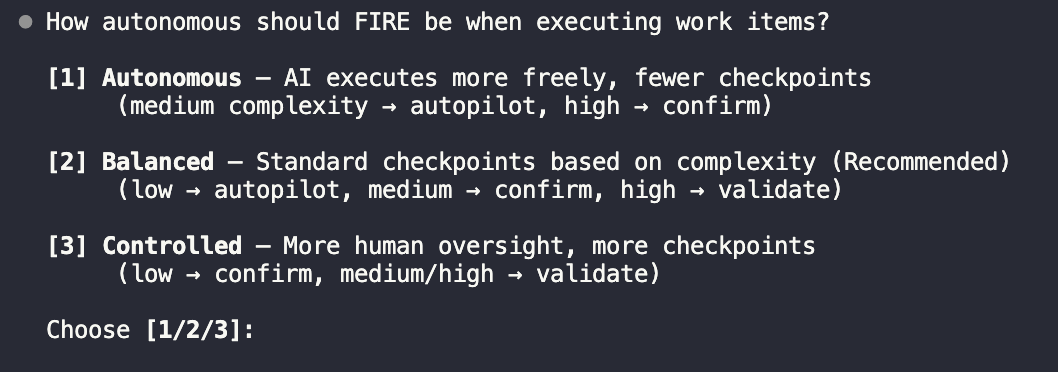
These combine to determine the execution mode:
Mode Comparison
Autopilot
0 checkpoints - AI executes directly
Confirm
1 checkpoint - Human confirms plan
Validate
2 checkpoints - Design + plan review
Autopilot Mode (0 Checkpoints)
AI executes directly, generates walkthrough for review.
When to Use
- Bug fixes with clear reproduction steps
- Minor updates (text changes, config tweaks)
- Well-defined CRUD operations
- Adding tests for existing code
- Documentation updates
Flow
Start → AI Plans → AI Executes → Walkthrough
No human checkpoints. AI loads context, executes changes directly, and generates a walkthrough for post-review.
Example
Work Item: Fix typo in error message
Mode: Autopilot

Builder executing...
✓ Updated src/errors.ts line 42
✓ Walkthrough generated

---
# Walkthrough: fix-error-typo

## Summary
Fixed typo "recieved" → "received" in authentication error message.

## Files Changed
- src/errors.ts (1 line)

## Verification
Error message now displays correctly on failed login.
Best Practices
- Keep Autopilot tasks small and focused
- Always review walkthroughs after completion
- Upgrade to Confirm if you’re unsure
Confirm Mode (1 Checkpoint)
AI presents plan, human confirms, AI executes.
When to Use
- Standard feature implementation
- API endpoint creation
- Component development
- Database queries (non-schema)
- Integration with external services
Flow
Start → AI Plans → ✋ Human Confirms → AI Executes → Walkthrough
One checkpoint: you review the AI’s plan before execution. Reject to provide feedback and get a revised plan.
Example
Work Item: Add user profile endpoint
Mode: Confirm

---
## Plan

1. Create GET /api/users/:id endpoint
2. Add UserProfile response schema
3. Implement authorization check (user can only view own profile)
4. Add unit tests for endpoint
5. Update API documentation

**Estimated changes**: 4 files, ~80 lines

[Confirm to proceed? y/n]
Providing Feedback
If the plan isn’t right, reject and provide feedback:
[Confirm? n]

Feedback: Also include the user's recent activity in the response
The Builder will revise and present an updated plan.
Validate Mode (2 Checkpoints)
AI generates design doc, human reviews design, human approves implementation.
When to Use
- Security-sensitive features (auth, permissions)
- Payment and billing logic
- Core architecture changes
- Database schema modifications
- External API integrations with side effects
- Features affecting multiple modules
Flow
Start → AI Designs → ✋ Human Reviews → AI Plans → ✋ Human Approves → AI Executes → Walkthrough
Two checkpoints: first review the design approach, then approve the implementation plan. This separates “is this the right approach?” from “is the plan complete?”
Example
Work Item: Implement password reset flow
Mode: Validate

---
## Design Document

### Overview
Secure password reset using time-limited tokens sent via email.

### Security Considerations
- Tokens expire after 1 hour
- Tokens are single-use
- Rate limited to 3 requests per hour per email
- Token hashed in database (not stored plaintext)

### Architecture
User Request → Rate Limiter → Token Generator → Email Service ↓ Token Verification ← User Click ← Email ↓ Password Update → Session Invalidation
### Database Changes
- New table: password_reset_tokens
- Columns: id, user_id, token_hash, expires_at, used_at

[Design review complete? y/n]

---

## Implementation Plan

1. Create password_reset_tokens migration
2. Add PasswordResetService with generate/verify methods
3. Create POST /auth/forgot-password endpoint
4. Create POST /auth/reset-password endpoint
5. Add email template for reset link
6. Implement rate limiting middleware
7. Add comprehensive tests

**Estimated changes**: 8 files, ~200 lines

[Approve implementation? y/n]
Two-Stage Review
This prevents:
- Starting implementation on a flawed design
- Missing edge cases caught during design review
- Scope creep during implementation
Choosing the Right Mode
Decision Matrix
| Factor | Autopilot | Confirm | Validate |
|---|---|---|---|
| Complexity | Low | Medium | High |
| Reversibility | Easy | Moderate | Difficult |
| Security Impact | None | Low | High |
| User Data | No | Read | Write |
| External Services | No | Read | Write |
| Schema Changes | No | No | Yes |
Quick Guide
Autopilot - Trust the AI
- Typo fixes
- Log statement additions
- Test additions for existing code
- Config value changes
- Comment updates
Confirm - Verify the Plan
- New API endpoints (GET, non-sensitive)
- UI components
- Utility functions
- Query optimizations
- Refactoring (behavior-preserving)
Validate - Full Review
- Authentication/authorization
- Payment processing
- Data migrations
- Third-party integrations (with side effects)
- Schema changes
- Security-sensitive features
Run Scope
Run scope determines how many work items execute in a single run. This is separate from execution mode—you can batch multiple Autopilot items together, or run Validate items one at a time.
Scope Options
Single
One work item per run
Most controlled. Each item gets its own run with dedicated walkthrough.
Best for: Learning the codebase, high-stakes changes, detailed review needs
Batch
Group by execution mode
Respects dependencies. Groups Autopilot items together, Confirm items together, etc.
Best for: Balanced workflow, mixed complexity work
Wide
Maximum items per run
Minimal interruption. All compatible items execute together.
Best for: Experienced users, rapid iteration, well-understood changes
Scope Comparison
| Scope | Items per Run | Grouping Strategy | Interruptions |
|---|---|---|---|
| Single | 1 | Each item isolated | Per item |
| Batch | By mode | Autopilot, Confirm, Validate grouped | Per mode group |
| Wide | All compatible | Maximum batching | Minimal |
How FIRE Learns Your Preference
FIRE tracks your scope choices and suggests your preferred pattern:
# In state.yaml
workspace:
  run_scope_preference: batch  # Learned from history
  run_scope_history:
    - choice: batch
      items_count: 3
      timestamp: 2024-01-15T10:30:00Z
    - choice: single
      items_count: 1
      timestamp: 2024-01-14T15:45:00Z
You can always override the suggestion for any individual run.