
IDE Extension
Track your AI-DLC progress with the specsmd sidebar extension for VS Code and compatible IDEs
Overview
The specsmd IDE extension provides a visual dashboard for tracking your development progress across both FIRE Flow and AI-DLC Flow. Monitor runs/bolts, browse specs, and see project metrics—all from your IDE sidebar.
Installation
Install directly from the Microsoft VS Code Marketplace:
- Open VS Code (or Cursor, Windsurf, etc.)
- Go to Extensions (
Cmd+Shift+X/Ctrl+Shift+X) - Search for “specsmd”
- Click Install
Or install via command line:
code --install-extension fabriqaai.specsmdView on VS Code Marketplace
Install from the official VS Code Marketplace
Compatible IDEs: VS Code, GitHub Codespaces
Install from Open VSX for VS Code forks and open-source IDEs:
- Open your IDE (Cursor, Windsurf, Kiro, etc.)
- Go to Extensions
- Search for “specsmd”
- Click Install
View on Open VSX
Install from the Open VSX Registry
Compatible IDEs: Cursor, Windsurf, Amazon Kiro, Google Antigravity, VSCodium, Gitpod, Google IDX, Eclipse Theia, Code-Server
Download and install the VSIX file manually:
- Go to GitHub Releases
- Download the latest
.vsixfile - In VS Code, open Command Palette (
Cmd+Shift+P/Ctrl+Shift+P) - Run “Extensions: Install from VSIX…”
- Select the downloaded file
GitHub Releases
Download VSIX for manual installation
Features
The extension supports both FIRE Flow and AI-DLC Flow. It automatically detects which flow you’re using and adapts the interface accordingly.
FIRE Flow Views
If you’re using FIRE Flow (.specs-fire/ folder), the extension provides:
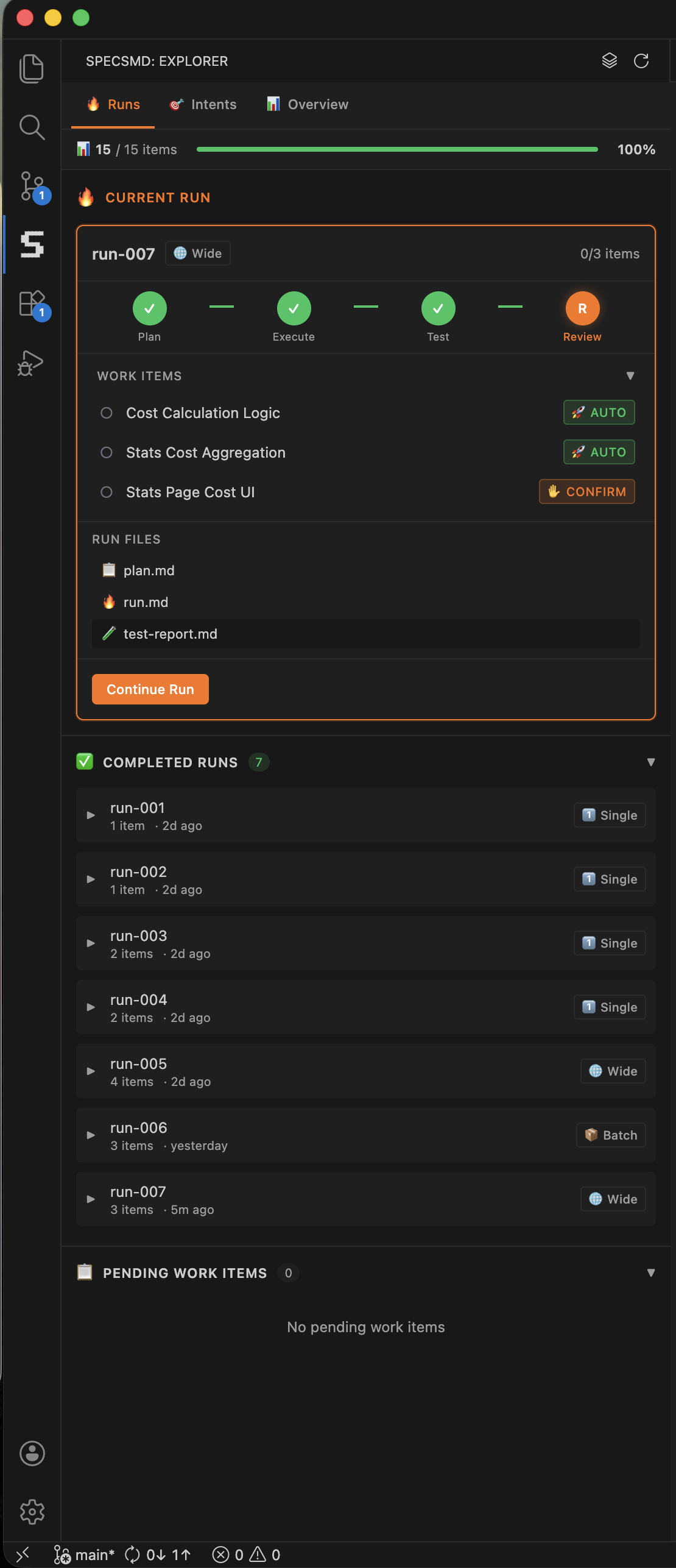
- Runs Tab - Track active runs and completed runs with file listings
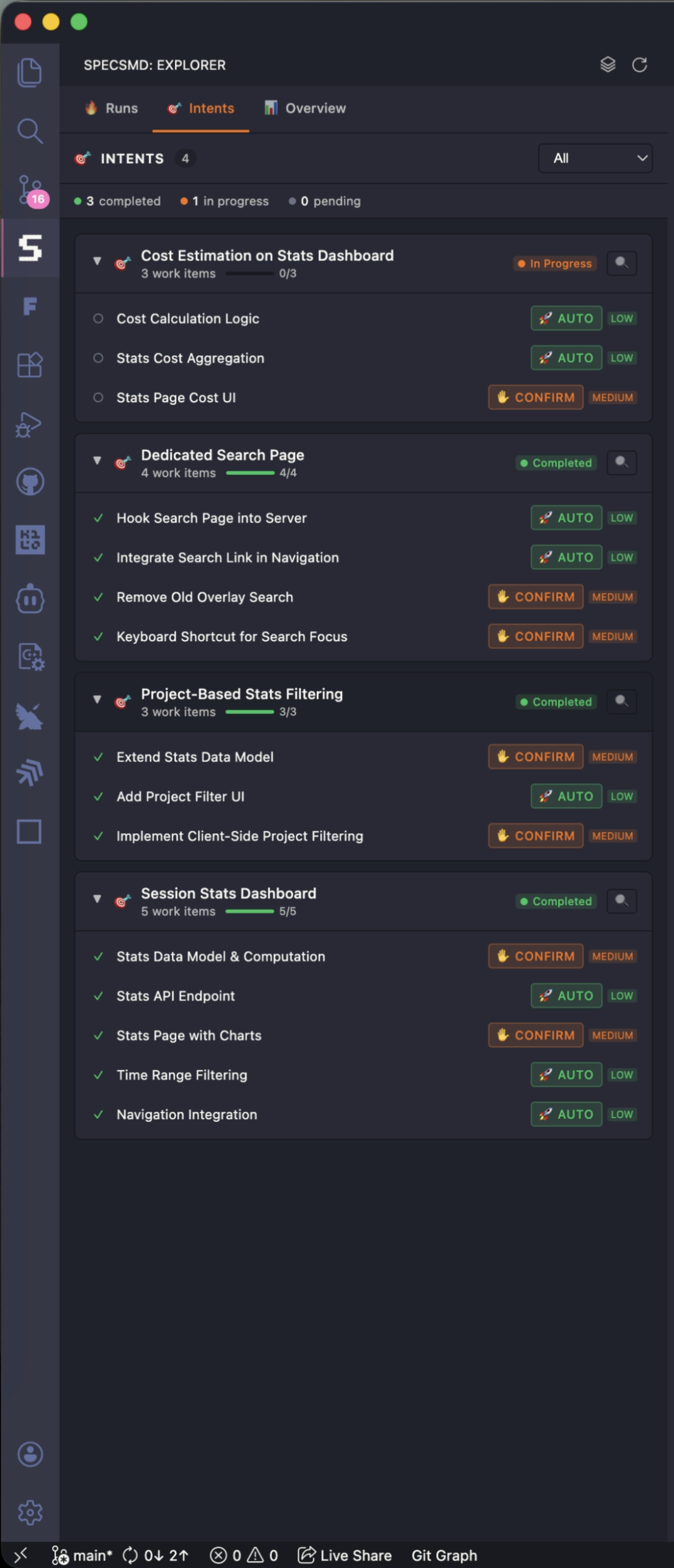
- Intents Tab - Browse intents and work items with progress indicators
- Overview Tab - Project-wide metrics and quick actions
AI-DLC Flow Views
If you’re using AI-DLC Flow (memory-bank/ folder), the extension provides three main views:
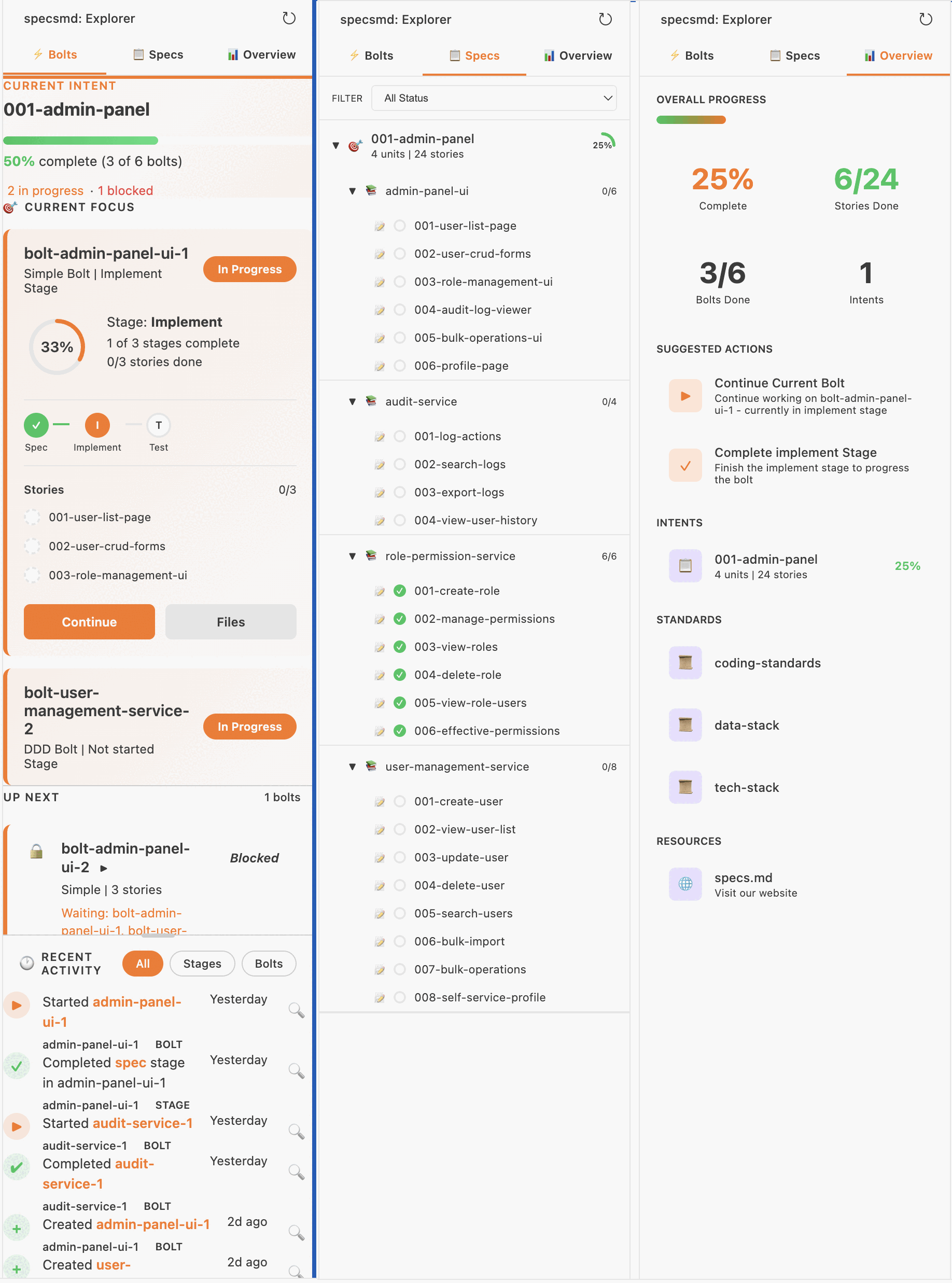
Bolts Tab
Track your bolt execution progress in real-time.
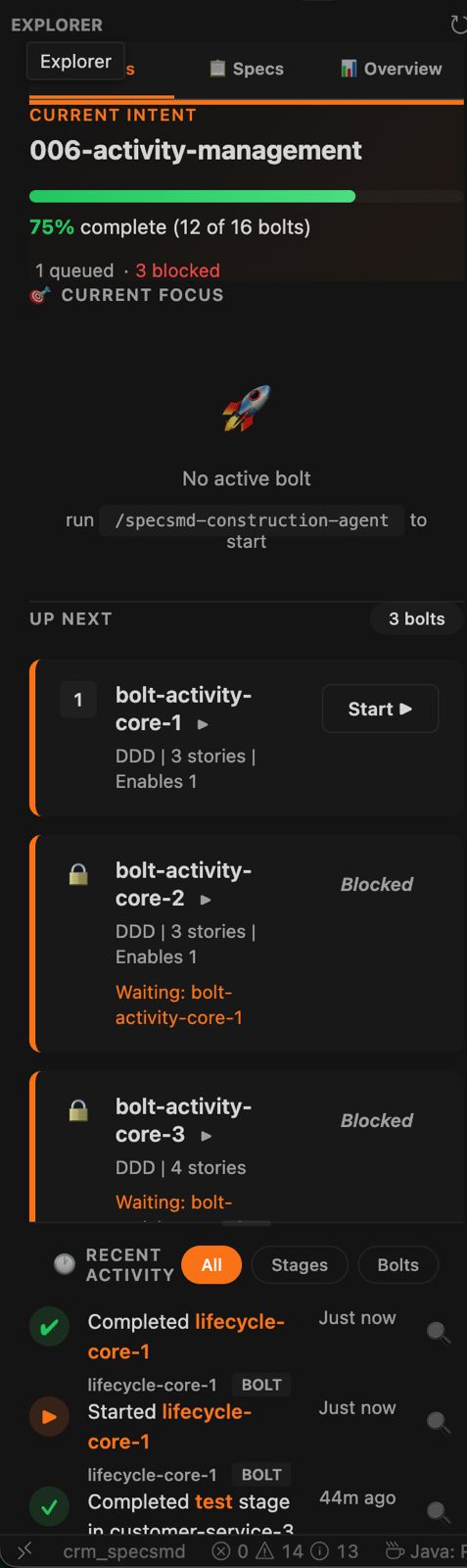
Current Focus
Shows active bolts being worked on with:
- Bolt name and type (DDD, Simple)
- Current stage progress
- Stage pipeline with status indicators
- Stories list with completion status
Up Next Queue
Shows pending bolts ready to be started:
- Unblocked bolts first (higher priority)
- Blocked bolts with dependency info
- Quick start button for each bolt
Recent Activity
Timeline of bolt and stage completions:
- Filterable by All, Stages, or Bolts
- Relative timestamps
- Click to navigate to files
Specs Tab
Browse your project specifications hierarchically.
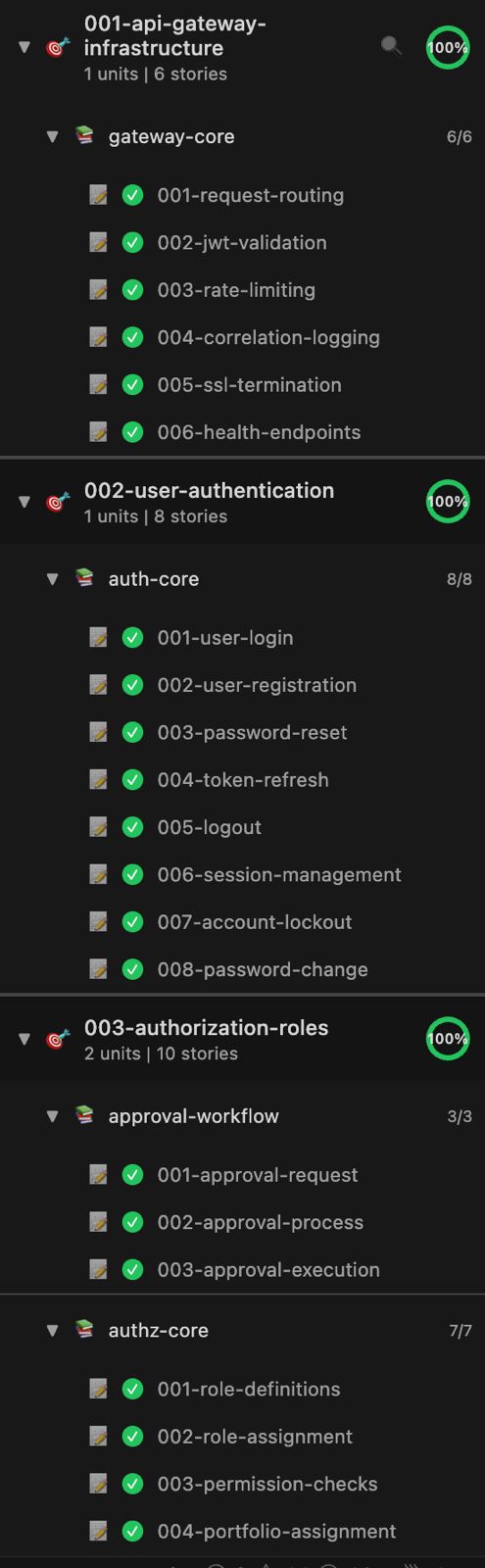
- Intents - High-level goals with progress indicators
- Units - Cohesive work elements within intents
- Stories - Individual user stories with status
Click any item to open its markdown file.
Overview Tab
High-level project metrics and quick actions.
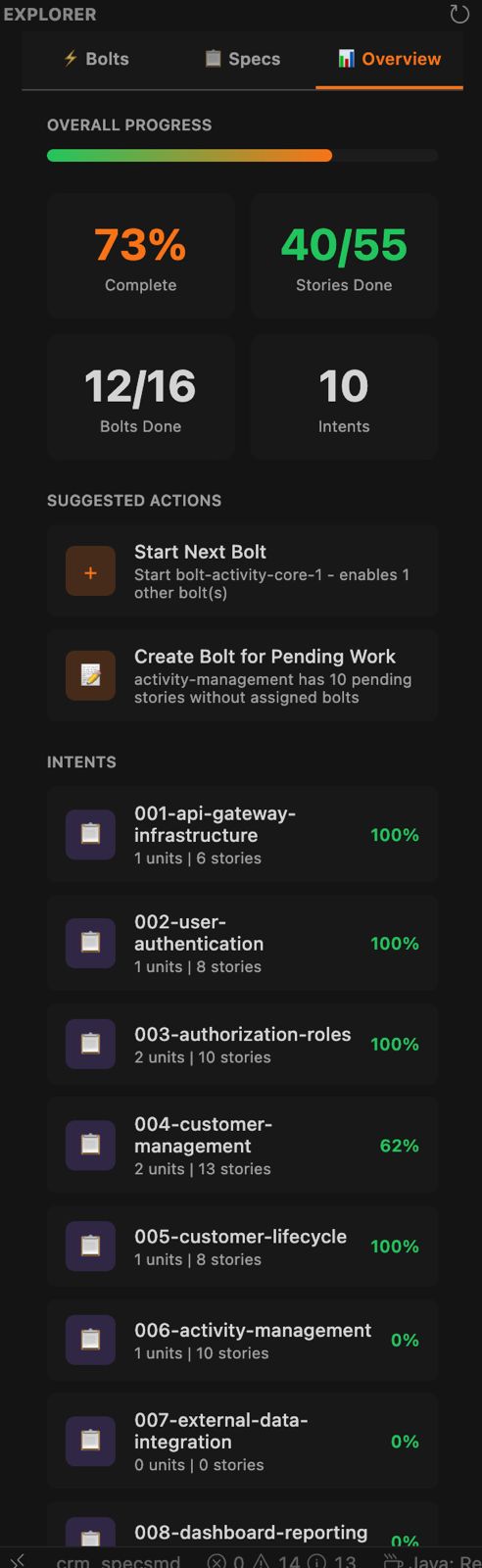
- Progress - Overall completion percentage
- Stats - Active, queued, done, and blocked bolts
- Suggested Actions - AI-recommended next steps
- Standards - Quick access to project standards
Activation
The extension automatically activates when it detects:
- A
memory-bank/folder in your workspace (AI-DLC Flow) - A
.specs-fire/folder in your workspace (FIRE Flow) - A
.specsmd/folder in your workspace
Refreshing Data
The extension watches your memory-bank files for changes. To manually refresh:
- Click the refresh icon in the sidebar header
- Or use Command Palette: “specsmd: Refresh”
Troubleshooting
Extension not showing in sidebar
Ensure your workspace has one of these folders:
memory-bank/(AI-DLC Flow).specs-fire/(FIRE Flow).specsmd/(Either flow)
The extension only activates when these are present.
# Initialize specs.md first
npx specsmd@latest install
Data not updating
Click the refresh icon in the sidebar header, or check that your memory-bank files are saved.
Extension not working in Cursor/Windsurf/other IDEs
The extension is compatible with VS Code-based IDEs. Install from the correct registry:
- VS Code Marketplace — VS Code, GitHub Codespaces (Microsoft products only)
- Open VSX Registry — Cursor, Windsurf, Amazon Kiro, Google Antigravity, VSCodium, Gitpod, Google IDX, Eclipse Theia, Code-Server
- VSIX file — Manual installation for any compatible IDE